
Payment Lock QR Guide
A fixed-amount QR reduces typing, but it does not replace payment verification. The receiver must still check the actual credit in the bank or UPI app.
Official tool URL: akprinthub.com/en/payment-qr
What is a Payment Lock QR?
It is a QR code that opens a UPI payment request with the payee address and amount already filled. The payer reviews and approves the transaction in their UPI app.
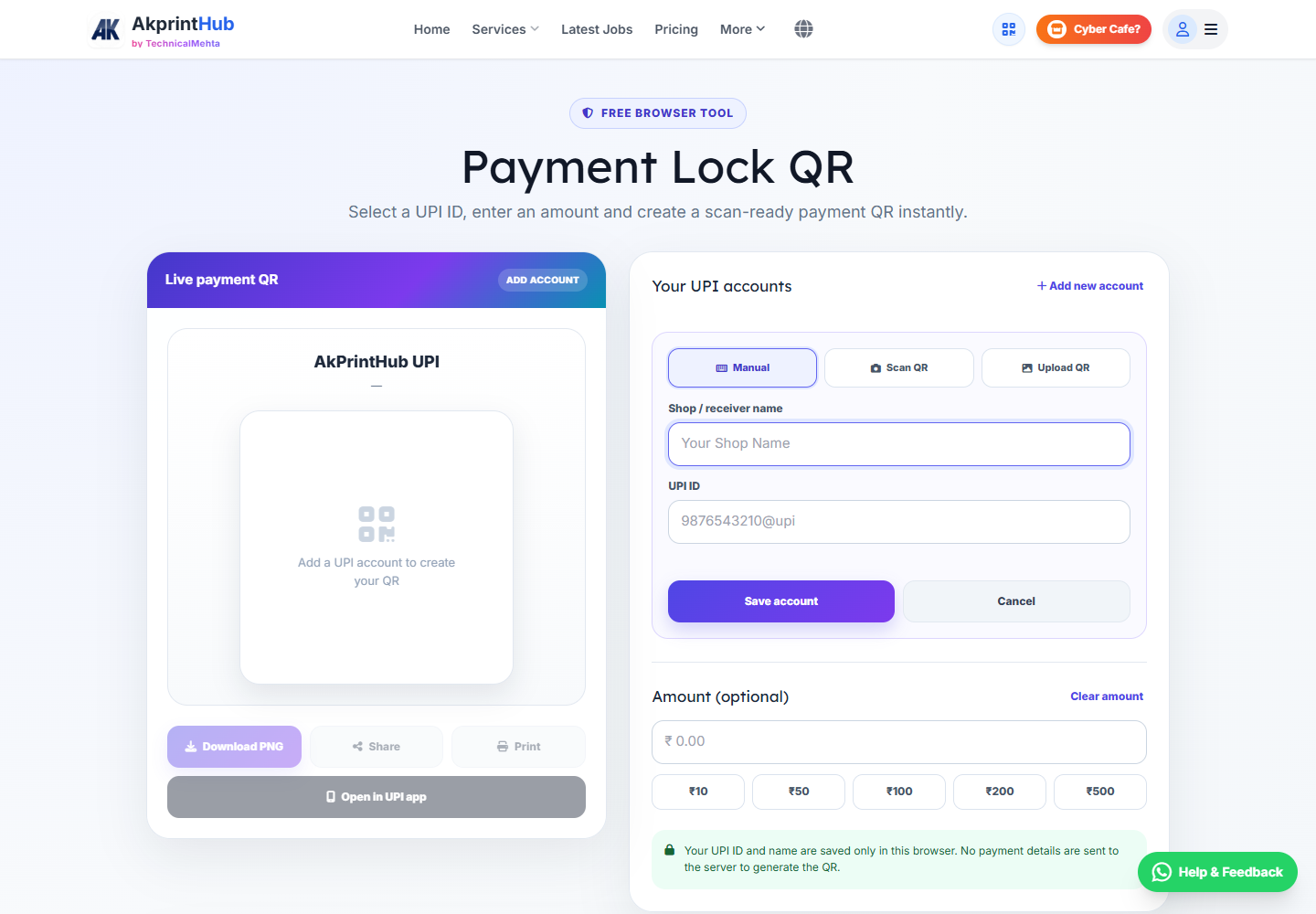
Tool ke screenshots
Actual tool screens aur available demo workflows neeche diye hain. Screenshot par click karke full size mein dekhein. Har caption mein screen ka context diya gaya hai; current interface ya plan details badal sakti hain.
Before you start
Copy the UPI ID directly from the receiving app when possible. A single wrong character can point to another address or make the QR fail.
- Correct UPI ID belonging to the intended receiver.
- Exact amount and a short, non-sensitive payment note.
- Access to a second phone or app for a test scan.
- A way to check actual bank or UPI transaction status.
How to use this tool
Enter the payee details
Type or paste the UPI ID and add a clear display name. Re-read the address character by character.
Set the amount
Enter the exact rupee amount. Avoid commas or extra symbols unless the form adds them automatically.
Generate the QR
Create the code and keep the preview visible. Do not cover the quiet white area around the QR with other graphics.
Test before sharing
Scan with a different phone and verify the UPI app shows the expected payee and amount. Cancel the test unless a payment is intended.
Download and use
Save or print the QR. Ask customers to confirm the payee name, then verify payment in your own app or bank account.
Fixed-amount QR share karne se pehle safe test
UPI QR banate waqt payee ID aur amount manually verify karein. QR par shop name ya purpose likhna customer ko confidence deta hai, lekin payment received hone ka final proof sirf receiver bank/UPI transaction history hai.
Ek chhoti test payment se QR scan, payee name aur fixed amount behaviour check karein. Screenshot ya “success” screen dekhkar delivery na dein; receiver account mein actual credit confirm karein.
- Payee name scan screen par match
- UPI PIN sirf payer apne app mein dale
- Transaction ID aur receiver credit verify
Check before download or print
- UPI app shows the intended payee name or verified handle.
- Amount is correct to the rupee and paise.
- QR scans from a normal viewing distance.
- Payment is confirmed in the receiver’s transaction history.
Common mistakes
- Treating a payer’s screenshot as proof of payment.
- Printing a QR without a test scan.
- Cropping too close to the QR edges.
- Entering sensitive data in the payment note.
Questions users usually ask
Does a fixed-amount QR debit money automatically?
No. The payer must scan, review and approve the payment in a UPI app, usually with their UPI PIN.
Can the customer change the amount?
The QR carries the specified amount, but behaviour can vary by UPI app. Check the payment screen and verify the final credit.
Is a payment screenshot enough?
No. Check the transaction in the receiver’s own UPI app or bank account before handing over goods or services.
Why will my printed QR not scan?
Check print contrast, size, damage and the clear margin around the code. Test the digital file to separate a QR-data issue from a print-quality issue.