
ID Card Print & Auto Crop Guide
This workspace is for arranging existing card or document images for printing. It is useful when a customer sends tilted mobile photos, separate front and back files, or several cards for one A4 sheet.
Official tool URL: akprinthub.com/en/service/id-card-print
What is ID Card Print used for?
It helps crop, straighten, pair and arrange card images in a print layout. It does not create, issue, correct or verify the underlying document.
Tool ke screenshots
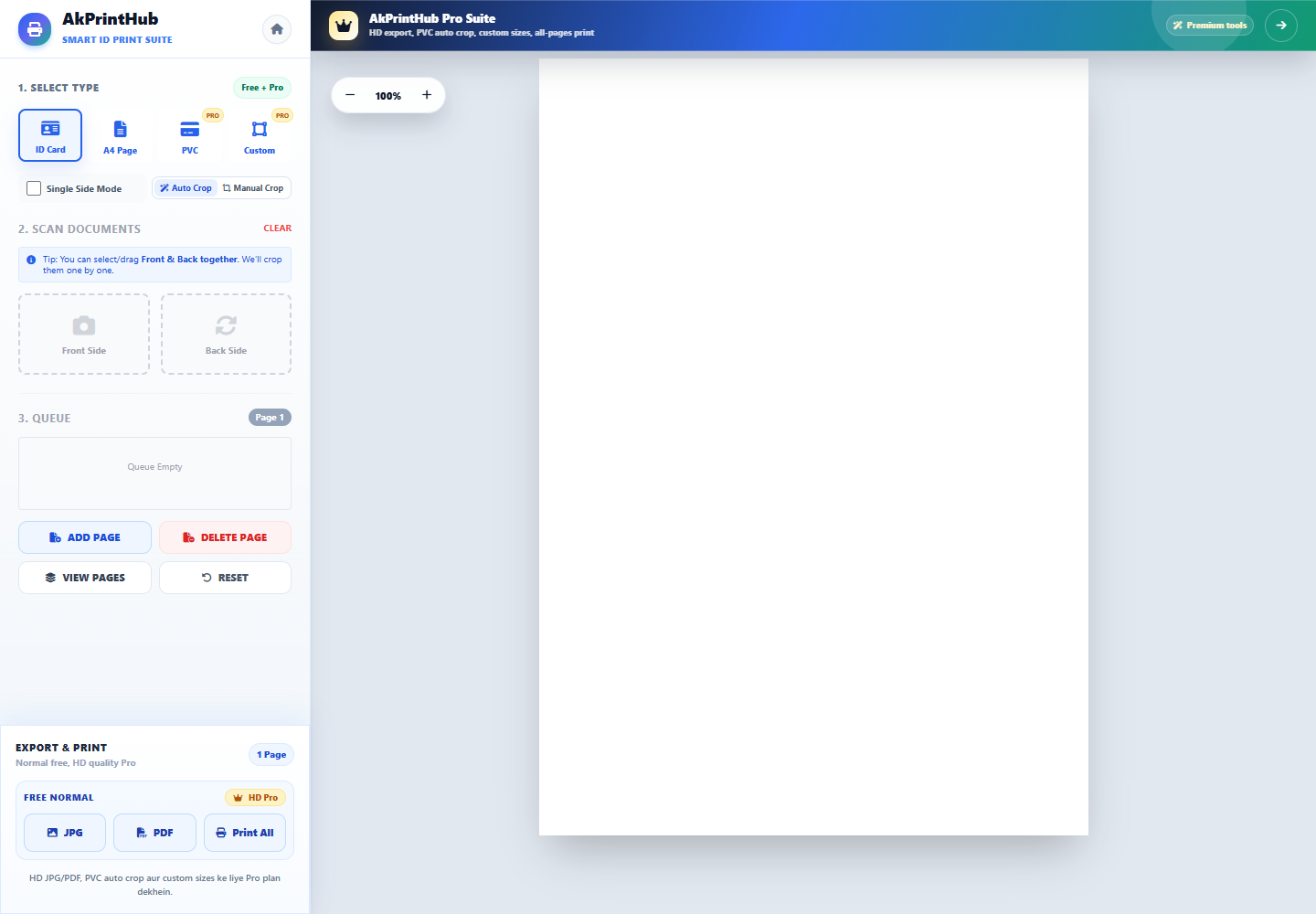
Actual tool screens aur available demo workflows neeche diye hain. Screenshot par click karke full size mein dekhein. Har caption mein screen ka context diya gaya hai; current interface ya plan details badal sakti hain.
Before you start
Ask for the clearest available front and back images. Make sure the user is authorised to print them and avoid saving extra copies on a shared computer.
- Front and back photos should show all four card edges.
- Use bright, even light without flash glare on laminated cards.
- Keep text readable and avoid images forwarded many times.
- Confirm whether the job needs normal paper, photo paper or PVC-size output.
How to use this tool
Choose the work mode
Open ID Card Print for a regular layout. Use Doc Auto Crop for photographed papers, PVC Auto Crop for card-shaped images, or Document Album for paired sets.
Upload front and back
Add the correct files to each side. For several customers, finish one pair before moving to the next so files are not mixed.
Review every crop
Automatic edge detection is a starting point. Check corners, rotate if needed and re-crop when text or a border has been cut.
Set the layout
Choose the template, paper size, spacing and number of copies. Keep the front and back orientation consistent for cutting or folding.
Preview at full size
Zoom into the final preview, confirm names and sides, then download or print. Delete local downloads when the work is complete.
WhatsApp ke tedhe-medhe document ko sahi kaise kare?
WhatsApp par aaye Aadhaar, PAN, voter card ya kisi paper ki photo aksar kone se khinchi hoti hai. Isliye document trapezium jaisa dikhta hai, ek side badi aur doosri side chhoti hoti hai. ID Card Print ke Doc Auto Crop mode mein photo upload karke pehle chaar asli corners check karein. Auto detection galat ho to har corner ko document ke real edge par manually rakhein.
Perspective correction ke baad text ki lines seedhi dikhni chahiye. Crop ke andar table, QR code, signature aur border poora rahe. Sirf document ka shape seedha karna hai—naam, number, photo ya doosri information badalni nahi hai.
- WhatsApp image ko forward karne ke bajay original “Document” ke roop mein mangna quality bachata hai.
- Glare ya gehri shadow ho to customer se seedhi, roshni wali nayi photo mangna behtar hai.
- Correction ke baad zoom karke chhote text aur QR code ko zaroor dekhein.
Mobile se khinche document photo ko crop aur seedha kaise kare?
Mobile ko document ke bilkul upar rakhkar photo lena sabse accha result deta hai. Lekin purani photo tedhi ho to Doc Auto Crop ya PVC Auto Crop mode use karein. Page ke liye Doc Auto Crop aur card-size item ke liye PVC Auto Crop chunna detection ko aasaan banata hai.
Enhance control ka use halka rakhein. Zyada contrast se thin letters toot sakte hain aur zyada sharpening se text ke charon taraf safed line aa sakti hai. Pehle geometry sahi karein, phir brightness ya clarity mein chhota adjustment karein.
Check before download or print
- All four edges are visible and the card is not skewed.
- Front and back belong to the same person or document.
- Text, photo and QR/barcode areas remain readable.
- Print scaling is 100% / Actual size.
Common mistakes
- Trusting auto-crop without checking each corner.
- Pairing one customer’s front with another customer’s back.
- Increasing sharpness until small text develops white halos.
- Leaving sensitive downloads in the browser or Downloads folder.
Questions users usually ask
Can this tool make a new Aadhaar, PAN or Voter ID?
No. It only arranges an existing document image for printing. It cannot issue, edit, validate or certify an official ID.
What should I do if auto-crop removes a corner?
Open the manual crop or re-crop option, place all four crop points on the real document corners and check the preview again.
Why does a card look stretched after printing?
Use a fixed card-size template and print at Actual size. Do not stretch the image to fill a frame with different proportions.
Can I work with mobile photos?
Yes, but the photo should be sharp, evenly lit and taken from as straight above the document as possible.