
Auto Print & Document Album Guide
These modes are built for repeated shop work: receiving a job, reviewing it and producing a consistent print without mixing customer files.
Official tool URL: akprinthub.com/en/service/id-card-print?mode=auto_print
Auto Print and Document Album solve different jobs
Auto Print connects a shop workflow and print queue. Document Album arranges up to four front/back document sets into a ready-to-fold A4 mini-album layout.
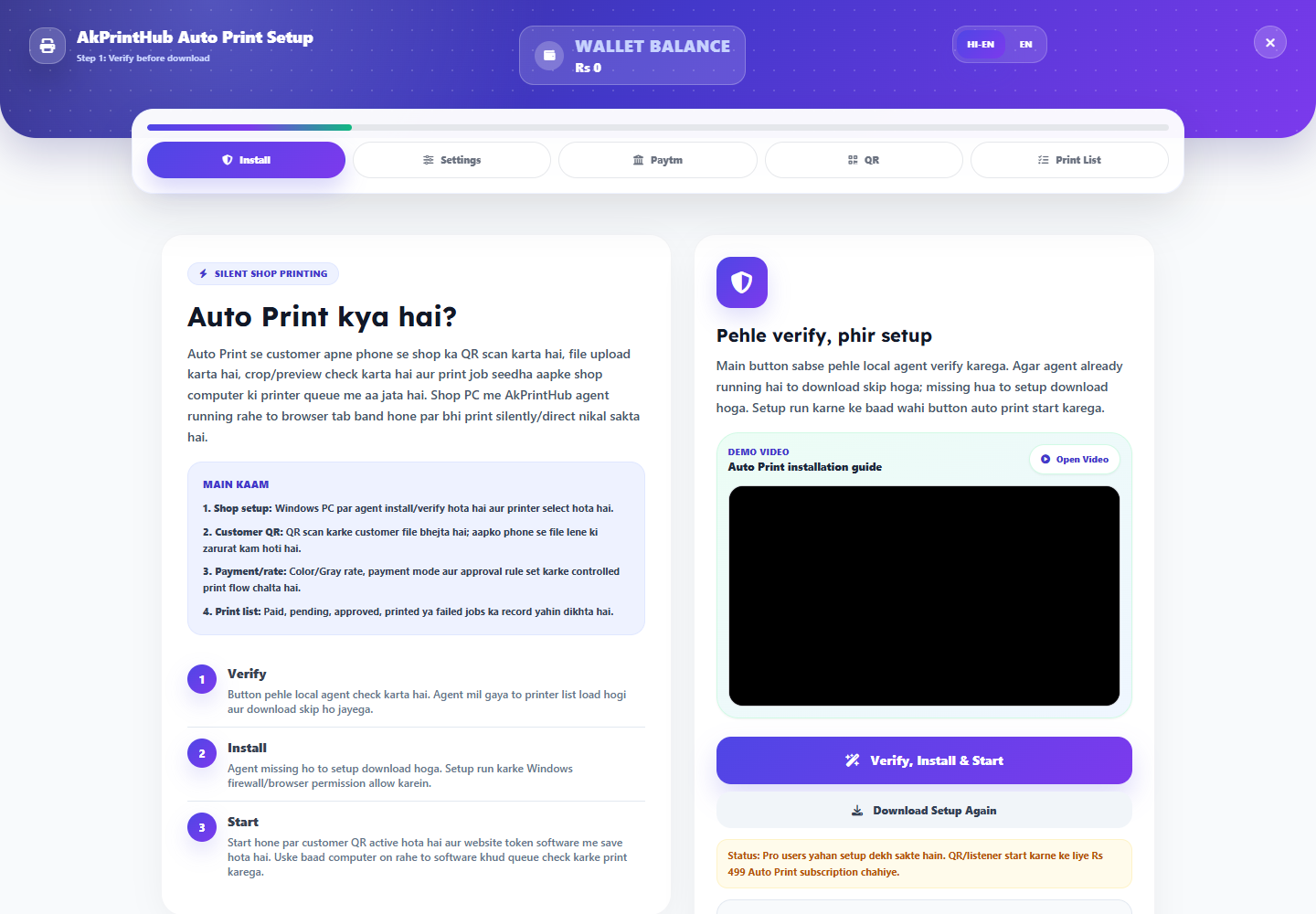
Tool ke screenshots
Actual tool screens aur available demo workflows neeche diye hain. Screenshot par click karke full size mein dekhein. Har caption mein screen ka context diya gaya hai; current interface ya plan details badal sakti hain.
Before you start
Set up the printer on the shop computer first. Test with non-sensitive sample files before accepting real customer documents.
- Compatible printer installed and able to print a Windows test page.
- Correct paper size and default tray selected.
- AkPrintHub printer agent downloaded from the official website.
- A simple shop process for reviewing, printing and deleting jobs.
How to use this tool
Open the required mode
Choose Auto Print for the shop queue or Document Album for a foldable A4 layout. Do not use live customer files for initial setup.
Connect the printer workflow
Follow the on-screen setup, select the real printer and confirm the agent is running on the same shop computer.
Upload a test job
Use sample front/back images, review crop and orientation, and confirm that the queue shows the correct job.
Print one sheet
Check paper size, duplex or fold instructions and physical output. Correct printer defaults before repeating the test.
Define cleanup
After delivery, clear completed jobs and remove unnecessary local files according to the shop’s privacy process.
Printer agent mein job atke to diagnosis ka order
Sabse pehle dekhein agent running hai ya nahi, phir selected printer, paper size aur queue status check karein. Browser tool ready hone ke baad bhi offline printer ya paused Windows queue job rok sakti hai.
Customer documents ke saath experiment na karein. Ek sample image se single-sheet test run karein, output sahi hone par hi batch queue start karein. Duplicate job dikhne par baar-baar Print dabane ke bajay queue clear karke cause identify karein.
- Agent status
- Correct printer and paper
- Windows queue and one sample print
Check before download or print
- Selected printer is the intended physical device.
- Paper size, colour mode and print quality are correct.
- Each job belongs to the right customer.
- Completed files are cleared after the job is delivered.
Common mistakes
- Testing setup with real identity documents.
- Leaving an old customer job selected in the queue.
- Changing printer defaults midway through a batch.
- Keeping downloaded customer files longer than needed.
Questions users usually ask
What is the printer agent?
It is the AkPrintHub desktop helper used to connect the supported browser workflow to a printer on the shop computer.
Can I test without customer documents?
Yes, and you should. Use sample images to verify printer, paper, orientation and queue behaviour first.
What does Document Album create?
It arranges front and back images from document sets into an A4 layout intended to be cut or folded as shown in the tool preview.
What should I do if the wrong printer opens?
Stop the job, select the correct printer in the tool or agent, check the Windows default printer and run one test sheet.