
PDF Converter & Organiser Tools Guide
This page explains which PDF tool to choose and how to avoid wrong page order, rotated scans and unreadable output.
Official tool URL: akprinthub.com/en/tool/jpg-to-pdf
Choose the tool by the result you need
Use JPG/PNG to PDF for image files, Merge PDF for complete PDFs, Delete PDF Pages to remove selected pages, and PDF to JPG when a portal accepts images instead of a PDF.
Tool ke screenshots
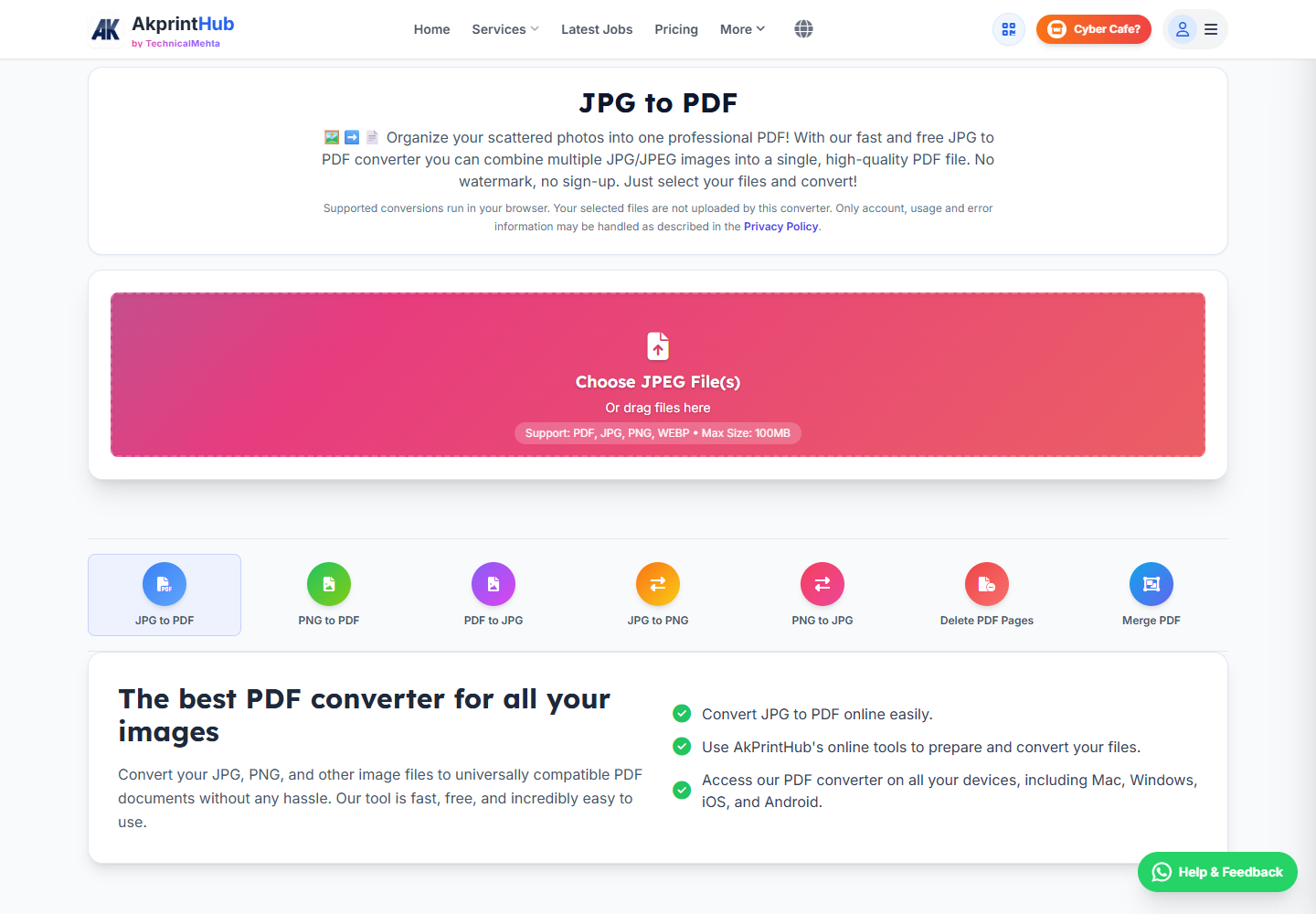
Actual tool screens aur available demo workflows neeche diye hain. Screenshot par click karke full size mein dekhein. Har caption mein screen ka context diya gaya hai; current interface ya plan details badal sakti hain.
Before you start
Create a temporary working folder and copy only the files needed for this job. Rename them in order—01, 02, 03—when sequence matters.
- Open every source file and check orientation and readability.
- Remove password protection only if you own or are authorised to use the file.
- Note the destination portal’s file-size and page-count limits.
- Keep the originals unchanged until the final PDF is verified.
How to use this tool
Pick the correct converter
Choose JPG to PDF, PNG to PDF, PDF to JPG, Merge PDF, Delete PDF Pages or PNG to JPG from the tool menu.
Add files in a clear order
Upload or drag the files. For a combined document, check the thumbnail sequence before processing.
Review options
Choose page size, orientation or image quality where available. Avoid aggressive compression when the document contains small text.
Process and download
Run the tool and save the result with a meaningful name such as application-documents.pdf.
Open the final file
Scroll through every page, confirm order and rotation, test text readability and check the final file size.
Kaun sa PDF tool kab use karein?
Images se naya document banana ho to JPG/PNG to PDF use karein. Do ready PDFs jodne ke liye Merge PDF, unwanted pages hatane ke liye Delete PDF Pages aur kisi PDF page ko image ke roop mein chahiye to PDF to JPG sahi workflow hai.
Conversion shuru karne se pehle pages ka required order kagaz par ya file names mein number karke clear kar lein. Final PDF ko first page se last page tak scroll karke dekhein; sirf file open ho jana correct output ka proof nahi hai.
- 01-name.jpg jaise numbered file names
- Password-protected file par authorised access
- Final page count aur orientation check
Check before download or print
- No page is missing, duplicated or upside down.
- Names, numbers, stamps and signatures remain readable.
- Final page order matches the form or application checklist.
- File size and format are accepted by the destination portal.
Common mistakes
- Merging files in upload order without checking the preview.
- Deleting a page from the only copy of a document.
- Converting text-heavy pages to low-quality JPG files.
- Closing the tab before opening and checking the download.
Questions users usually ask
How do I combine several photos into one PDF?
Open JPG to PDF or PNG to PDF, add the images, arrange them in the correct order and download the combined PDF.
Should I use Merge PDF or JPG to PDF?
Use Merge PDF when every source is already a PDF. Use JPG to PDF when the sources are image files.
Can I remove one wrong page without remaking the whole PDF?
Yes. Use Delete PDF Pages, select only the unwanted page and check the new file before discarding anything.
Why did a portal reject my PDF?
Check its size, page count, password status and naming rules. Some portals also reject scanned PDFs that exceed a stated resolution or size.