
Photo Background Remove Karne Ka Guide
Photo ka background hatakar transparent PNG, colour-background JPG ya image-size PDF download karne ka step-by-step guide.
Official tool URL: akprinthub.com/en/service/remove-background
Remove Background kaise kaam karta hai?
Photo upload karein, Remove BG dabayein, Original aur Result compare karein aur transparent ya solid background ke saath selected photo download karein.
Tool ke screenshots
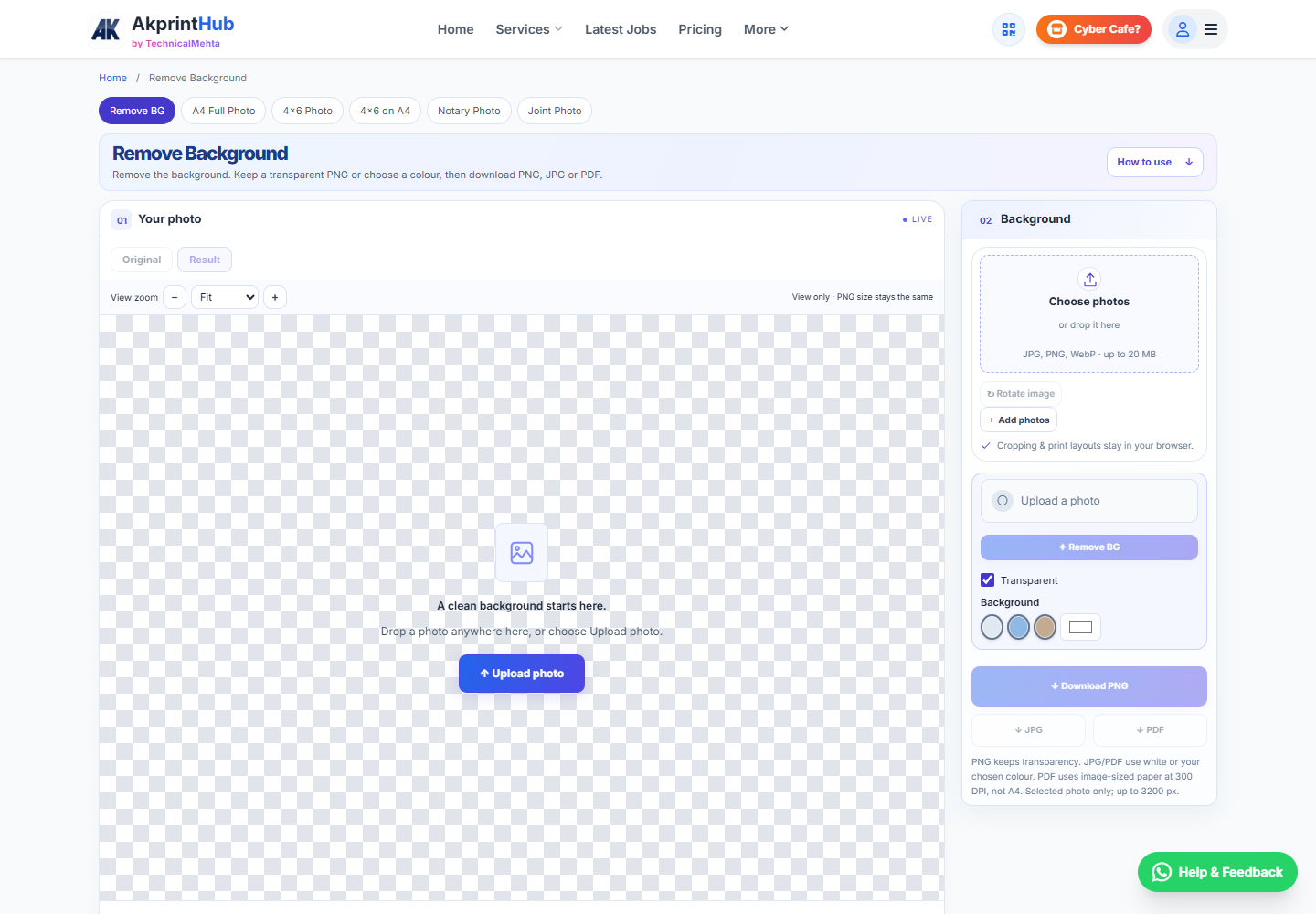
Actual tool screens aur available demo workflows neeche diye hain. Screenshot par click karke full size mein dekhein. Har caption mein screen ka context diya gaya hai; current interface ya plan details badal sakti hain.
Before you start
Shuru karne se pehle original files aur required output ready rakhein.
- Clear JPG, PNG ya WebP ready rakhein; upload limit screen par check karein.
- Subject aur background ke edges clear hon.
- Transparent cutout chahiye ya solid background, pehle decide karein.
How to use this tool
Photo upload aur select karein
Choose photos se JPG, PNG ya WebP add karein. Multiple files mein current thumbnail select karein; download selected photo ka hota hai.
Remove BG chalayein
Remove BG dabayein aur processing complete hone dein. Failure aaye to retry se pehle connection aur screen ka allowance/login message check karein.
Original / Result compare karein
Hair, ears aur shoulders ko View zoom se dekhein. Original tab source dikhata hai; download phir bhi processed result save karta hai.
Transparent ya colour choose karein
Transparent tick rakhein to PNG mein background transparent rahega. Swatch ya custom colour choose karne par solid background aayega.
PNG, JPG ya PDF save karein
Download PNG transparency rakhta hai. JPG/PDF white ya selected colour use karte hain. PDF image-size hota hai; A4 sheet chahiye to A4 Photo Print kholen.
Preview zoom aur output size
View zoom sirf screen par image ko bada/chhota dikhata hai. Loaded image longest edge par up to 3200 pixels hoti hai; memory limit par size aur kam ho sakta hai.
Yeh mode automatic crop, print border ya skin retouch nahi lagata. Background edge acceptable na ho to clearer source use karein; manual erase brush available nahi hai.
Check before download or print
- Hair aur subject ke edges check kiye hain.
- Sahi photo selected hai.
- Transparency ke liye PNG choose kiya hai.
- Downloaded image kholkar background verify kiya hai.
Common mistakes
- Checkerboard ko downloaded background samajhna.
- JPG mein transparency expect karna.
- View zoom ko image resolution samajhna.
- Image-size PDF ko A4 sheet samajhna.
Questions users usually ask
Original tab dekhte waqt kya download hoga?
Download processed result ka hota hai; Original tab comparison ke liye hai.
Transparent JPG mil sakta hai?
Nahi. Transparency ke liye PNG use karein. JPG/PDF transparent areas ko white ya chosen colour se fill karte hain.
PDF A4 size kyun nahi hai?
Is mode ka PDF image pixels ko 300 DPI par physical dimensions mein badalta hai. A4 Photo Print mein fixed A4 layout milega.
Background removal unavailable ho to?
Error message check karein, clearer photo ya retry use karein. Current tool ki processing aur allowance instructions follow karein.