
Photo Crop, Resize & Compress Guide
Use this guide for exam forms, job portals and other uploads that specify a width, height or maximum file size.
Official tool URL: akprinthub.com/en/service/photo-crop-resize
Crop, resize and compress are different jobs
Crop changes what is visible, resize changes pixel dimensions, and compression reduces file size. A form may require one, two or all three.
Tool ke screenshots
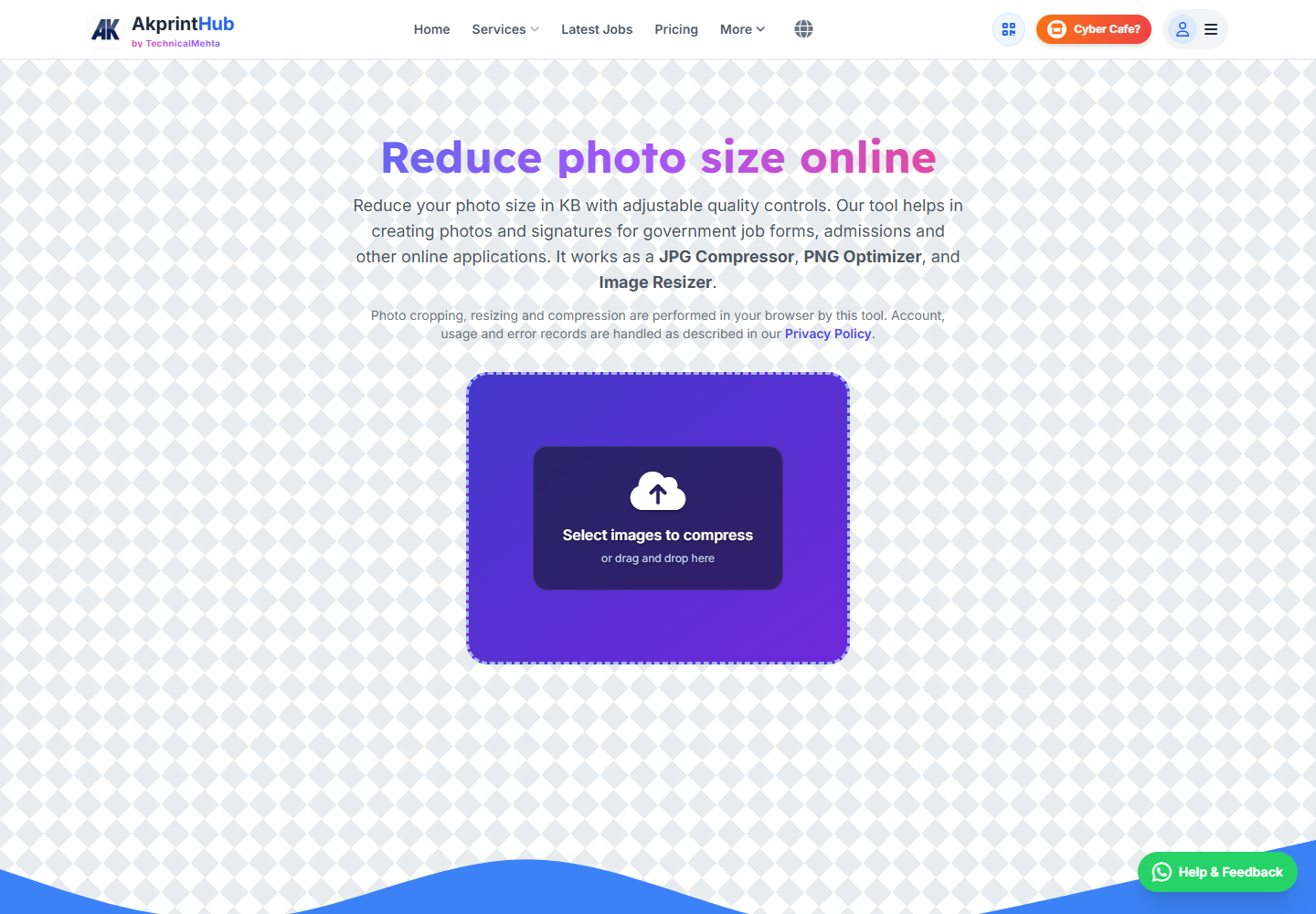
Actual tool screens aur available demo workflows neeche diye hain. Screenshot par click karke full size mein dekhein. Har caption mein screen ka context diya gaya hai; current interface ya plan details badal sakti hain.
Before you start
Read the upload instructions before editing. Write down the required format, width, height and KB limit so you do not optimise for the wrong target.
- Use the original photo instead of a social-media copy.
- Note the required pixels or physical dimensions.
- Note the minimum and maximum file size, for example 20–50 KB.
- Check whether JPG, JPEG, PNG or another format is accepted.
How to use this tool
Upload the original
Choose the clearest version. If the tool shows the current pixels and file size, compare them with the form requirement.
Set the crop first
Place the face, signature or document inside the frame. Cropping before resizing avoids wasting pixels on unwanted areas.
Enter the output size
Set the exact width and height in pixels, or use the available unit required by the form. Keep aspect ratio only when the requirement allows it.
Adjust file size
Choose the target KB range and preview the result. If fine details become blocky, return to the original and use a slightly higher allowed size.
Download and verify
Open the saved image, confirm its dimensions and size in file properties, and upload that final copy to the form.
20KB ya 50KB photo banane ka sahi order
Pehle crop set karein, phir exact pixel width aur height, aur sabse aakhir mein KB size. Agar pehle 20KB compression kar di aur baad mein image resize ki, to photo dobara compress hokar blur ho sakti hai.
Form agar 20KB se 50KB maangta hai to bilkul 20KB banana zaroori nahi. Clear result jo allowed range mein ho, wahi behtar hai. Face, signature ya printed text ko 100% zoom par check karein.
Check before download or print
- Output format is accepted by the destination website.
- Width, height and file size all fit the stated limits.
- Face, signature or text remains sharp enough to read.
- The final filename is simple and contains no confusing extra versions.
Common mistakes
- Reducing KB before setting the final dimensions.
- Stretching a portrait to match width and height.
- Reading “KB” as “pixels” or the other way around.
- Uploading an older download instead of the checked final file.
Questions users usually ask
How do I resize a photo to 20KB?
Set the required crop and pixel dimensions first, then choose a target near 20KB and check that the result is still clear.
Why is my image blurry after resizing?
The original may be too small, or the compression may be too strong. Start again with the original and use the highest file size allowed.
Should I keep the aspect ratio?
Keep it when the destination asks for only one dimension or accepts the original shape. Turn it off only when exact width and height are required, and crop instead of stretching.
What is the difference between JPG and PNG here?
JPG is usually smaller for photographs. PNG can preserve sharp graphics and transparency but may produce a larger file. Follow the portal’s accepted format.